How to handle Google Drive files that have a "Marked for Deletion" label or are "view-only"
Summary
Environment
- Google Drive in VCU Google Workspace accounts
- Files with the "Marked for Deletion" label
Solution
Contacting Doctor Gee
If you come across a file that has a label/badge that says "Marked for Deletion" and/or "The file is view-only", contact Doctor Gee at drgee@vcu.edu or submit a service ticket right away. Collaboration Services will need to recover the item and move it to a Shared Drive to ensure the file is not deleted.

Additional Information
Looking for Additional Files and Folders
If you think there might be more files like the one you've just found, consider performing a search in Google Drive to search for other files with the label:
- Go to https://drive.google.com/a/vcu.edu
- In the search bar ("Search in Drive") at the top, click the "Advanced search" icon.

- Under Labels, click into the "Search labels" field. Select "File Deletion Status", then in the "Select a field" field, select "File Deletion Status", then in the "Any" field select "Marked for Deletion"

- Click "Search"
- If there are no results, then you only need to contact Doctor Gee / submit a ticket for the original file.
- If there are results and you do wish to recover them, continue below.
- Select all of the files in the list you wish to keep.
- To select multiple things in a row, click the first item in the list, press and hold "Shift", then click the last item in the list.
- To select multiple things not in a row, hold the Control Key (Windows) or Command Key (Mac) and click the desire items
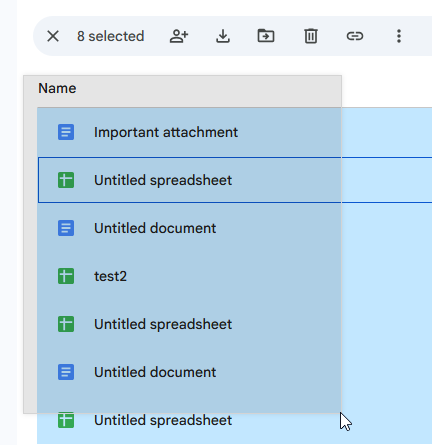
- You can also click and drag to select multiple items in a row. Start by clicking and holding the left mouse button in an area outside of the list, then drag your cursor over the items.
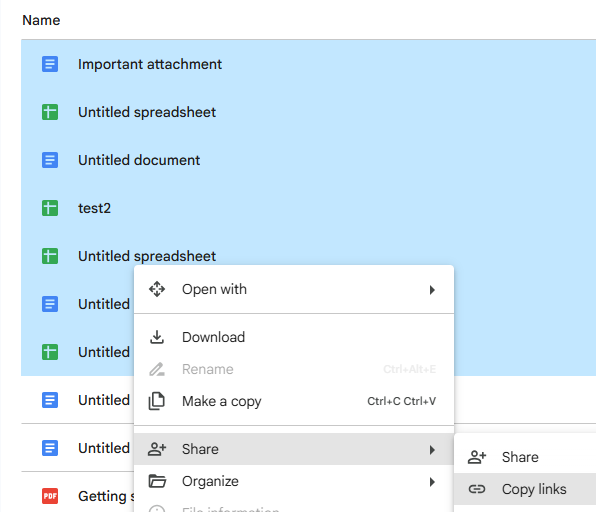
- Right-click the selection of items, hover over "Share", then click "Copy links".
- Include these links in your email or ticket. You can paste the links by pressing Ctrl + V (Windows) or Cmd + V (Mac).
Moving the Folders/Files
After contacting Doctor Gee, you will be granted a temporary special permission that allows you to move the file(s) into a Shared Drive. You must be a Manager of the Shared Drive to be able to move the items. You will be able to click and drag the items from your "Shared with me" over to the Shared Drive, or select the item(s) and use the Ctrl+X / Cmd+X keyboard shortcut to "Cut" the files, then use Ctrl+V / Cmd+V within the desired Shared Drive folder to move the items to their new location. For a in-depth guide with screenshots, see: How to move files that have a "Marked for Deletion" label.
Important Notes
- You must be a Manager (not Content manager) of the Shared Drive to be able to migrate files and folders in this way. If you are not a Manager, please ask your Shared Drive's Manager(s) to make you one temporarily.
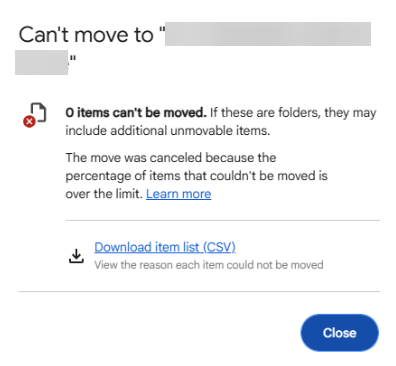
- If you receive an error saying Can't move to "(name of destination folder)", this means that the folder you're trying to move has items that aren't allowed to be moved into the Shared Drive, usually due to items owned by accounts outside of VCU. If this happens, notify Doctor Gee so our team can migrate the items for you. We will either make a copy of the items or shortcut to the items.
- If you don't have a Shared Drive, you'll need to have one created. Please submit a ticket to request to have one made.
Solution Properties
- Keywords
- google drive label marked-for-deletion former
- Solution ID
- 250903125748583
- Last Modified Date
- 10/10/2025 02:53:41 PM
- Taxonomy
- Collections
-
- VCU (Auth)
- IT Professionals
- Views
- 0